Inoa TSA howto
Inoa Time Stamping Authority (TSA) howto
Technical information
Timestamping with openssl client (version 1.0.0)
- openssl ts -query -data doc -sha1 > doc.tsq
- tsget -h http://inoa.net/ca/tsa -v doc.tsq
- openssl ts -reply -in doc.tsr -text
- openssl ts -verify -in doc.tsr -data doc -CAfile 00.pem -untrusted tsa.pem
Timestamping with Adobe Acrobat 9.0
- Document -> Security Settings
- Security Settings Window -> Time Stamp Servers New
- New Time Stamp Server -> Server URL: http://inoa.net/ca/tsa
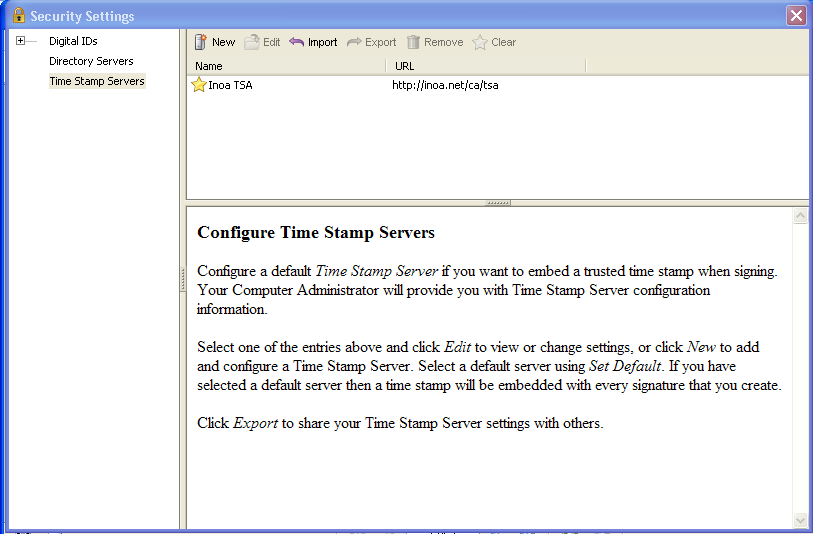
- Set Inoa TSA as the default timestamping when signing a document
Timestamping with Microsoft SignTool
Timestamping with Microsoft Office 2010
To activate timestamping in Microsoft Office 2010, you activate document signing (X.509 personal cerficate required). This signature will then be timestamped, if you set following keys in the registry:
"XAdESLevel", "MINXAdESLevel", and "TSALocation".
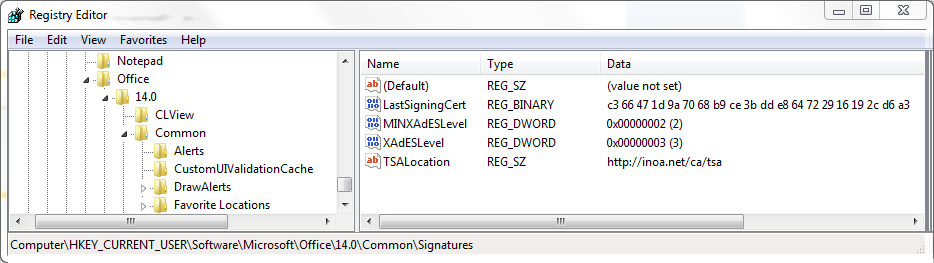
The registry entries to configure Inoa TSA can be installed via this .reg file.
XAdES-C timestamping with XAdES.php
Download from http://sourceforge.net/projects/xades-php/.
PDF timestamping with JSignPDF
Download from http://sourceforge.net/projects/jsignpdf/.
Further explanation:
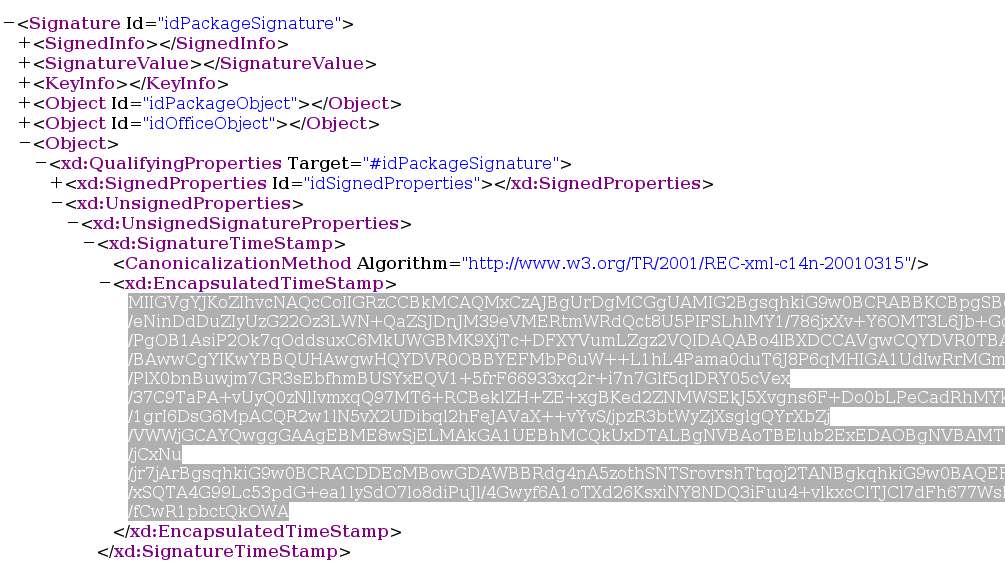
In the Office Open XML format, a file _xmlsignatures/sig1.xml is present (sig2.xml, sig3.xml for further signatures). In that XML structure, look for
<Signature Id="idPackageSignature">

    <Object>

        <xd:QualifyingProperties Target="#idPackageSignature">

            <xd:UnsignedProperties>

                <xd:UnsignedSignatureProperties>

                    <xd:SignatureTimeStamp>

                        <xd:EncapsulatedTimeStamp>
It contains Base64 encoded DER encoded ASN.1 data. This is the TimeStampToken as received from the server.
This page is maintained by Frederik Vermeulen.